When you click on links to various merchants on this site and make a purchase, this can result in this site earning a commission. Affiliate programs and affiliations include, but are not limited to, the eBay Partner Network.
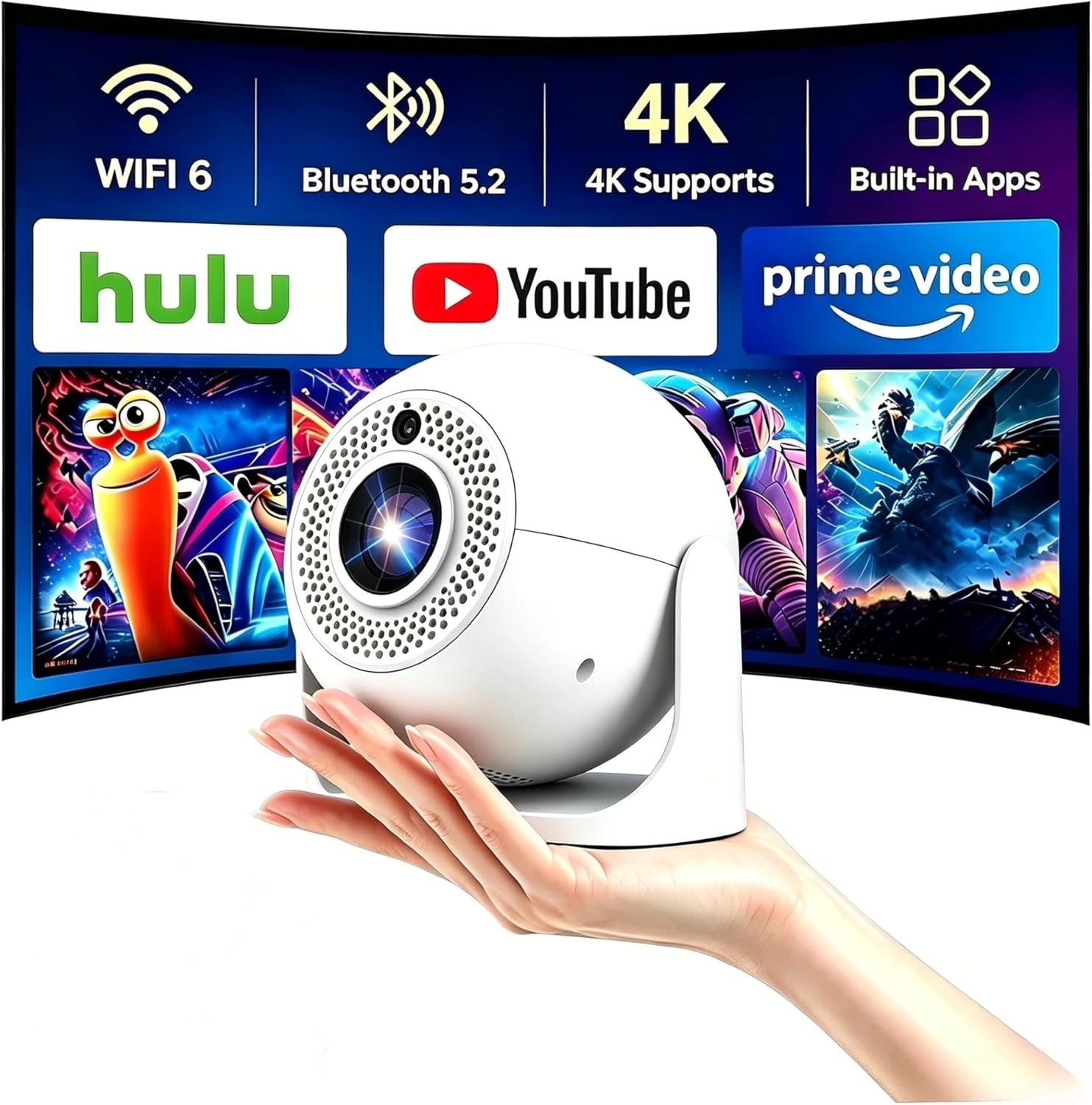
All-Scenario Bestseller:Compact and portable enough to fit in a camping backpack. Delivers crisp visuals for business with 4K compatibility, and creates immersive home theater experiences with HDR. Seamlessly connects to phones/TV sticks, making it a top-tier audio-visual companion for home, office, and outdoor use.
Fast & Stable Connection:Equipped with dual-band WiFi (2.4G+5G) and Bluetooth 5.2. The 2.4G band offers wide coverage for open camping areas, while 5G enables buffer-free movie streaming. Apps switch smoothly without lag.
Easy to Operate:Comes with an intelligent voice remote. Adjust volume, switch content, or tweak image quality via voice—no need to fumble with tiny buttons. Accessible for both seniors and kids, it’s a popular \"family-friendly digital product.\"
Versatile Surface Adaptation:Features a 180° rotatable lens and auto keystone correction. Project onto ceilings for lazy home viewing, tent walls for camping movie nights, or plain white walls for professional business presentations. Supports one-tap screen casting from phones/TV sticks and other devices.
Durable & Portable:Built with a rugged outdoor-grade body to resist minor impacts and scratches. Its mini size and 1.5m power cable fit easily into backpacks, making it stress-free to carry for business trips or camping. Delivers consistent, smooth performance.
PLS ATTENTION:
Q:Is an OTA Update Required Before First Use?
A:No OTA update is required prior to first use. If an update is available, a notification will pop up on the home screen. You can choose to update immediately or later — no extra steps are needed.
Q:What Is the Optimal Projection Distance?
A:The recommended projection distance is 1.5–2 meters. This range delivers a clear, properly sized image between 56–80 inches.
Q:How to Fix a Distorted or Non-Square Projection?
A:1. Place the projector on a flat surface.
2. Go to Settings > Projector > Disable AutoTrapezoid.
3. Select Projection Horizontal calibration to calibrate the image.
4. Choose Corner Correction and fine-tune with the remote\'s directional keys.
Q:How to Fix a Blurry Image?
A:Use the F+ and F- buttons on the remote to manually focus the image. For optimal clarity, place the projector no more than 2 meters away from the screen or wall.
Q:Important Reminders
A:Please don\'t block the projector\'s air intake/exhaust vents (heat dissipation vents)—blockage may cause overheating or screen burn-in. Avoid touching the vents during or after use to prevent accidental burns.